
Is Your Computer Fan Loud?
- gotobowl82
- May 4
- 4 min read
How to Repair a Loud Computer Fan (And Why You Shouldn't Ignore It)
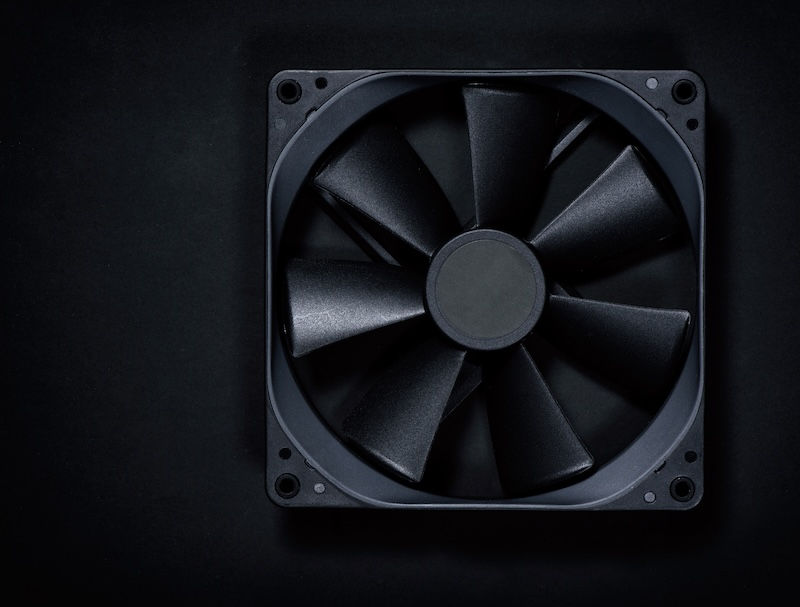
A loud computer fan doesn’t happen by accident. When your system suddenly sounds like it’s working overtime—or slowly gets noisier over weeks or months—it’s trying to tell you something. Most people ignore it because the computer still “works.” But that noise often points to heat, strain, or failing hardware. If you catch it early, you’re usually dealing with a simple fix. If you ignore it, you could end up replacing major components.
Dust Buildup: The Most Common Cause

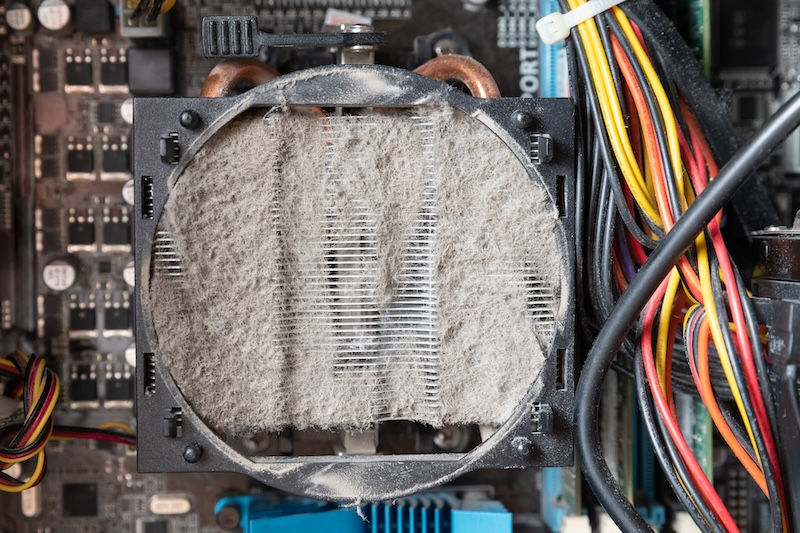
In many cases, dust buildup drives fan noise. Computers pull in air constantly, and along with that air comes dust, debris, and even pet hair. Over time, that material collects inside your system and clogs airflow.
As airflow decreases, internal temperatures rise. Your computer responds by spinning the fan faster to compensate—and that’s where the noise comes from. You’ll typically see dust-related issues show up like this:
Fan runs loudly even during light use
System feels warm to the touch
Noise gradually worsens over time
Air vents look visibly dirty or blocked
What starts as a simple cleaning issue can quickly lead to overheating if left unchecked. That’s why dust buildup ranks as the most common—and most preventable—cause of fan noise.
Failing Fan Bearings: When Noise Turns Mechanical
Sometimes the issue isn’t airflow—it’s the fan itself. Every computer fan relies on small internal bearings to spin smoothly. Over time, those bearings wear out, especially in systems that run frequently or operate in dusty environments.
When that happens, the sound changes. Instead of a steady airflow noise, you may hear:
Grinding
Rattling
Clicking
High-pitched whining
This type of noise signals mechanical failure, not just heat. And unlike dust, this problem doesn’t improve—it gets worse. If a fan fails completely, your system loses a key cooling component. That puts your CPU and other hardware at immediate risk.
Thermal Throttling: The Hidden Performance Hit

A loud fan often pairs with something you can’t see—but definitely feel thermal throttling. When your computer gets too hot, it slows itself down to prevent damage. At the same time, the fan ramps up to try to cool everything off.
You might notice:
Slower performance than usual
Lag when opening programs
Reduced speed during tasks that used to run smoothly
Fan running at full speed for long periods
This combination creates a frustrating experience—your computer sounds like it’s working hard, but everything feels slower. Thermal throttling doesn’t just impact performance in the moment. Over time, consistent heat exposure can shorten the lifespan of your internal components.
Background Processes and Software Load

Not every loud fan points directly to hardware. Sometimes your computer works harder than it should because of what’s running in the background. Excess startup programs, unnecessary applications, or even malware can drive CPU usage higher than normal. That increased workload generates more heat, which forces your fan to work harder.
If your fan runs loudly even when you’re not actively using your computer, software could be part of the problem.

Why Ignoring the Noise Costs You
It’s tempting to ignore a loud fan—especially if your system still turns on and runs. But that noise almost always signals a developing issue. Left alone, these problems tend to escalate:
Dust buildup restricts airflow further
Bearings continue to degrade
Heat levels increase
Components begin to wear prematurely
What could have been a quick cleaning or simple fan replacement can turn into CPU damage, motherboard issues, or full system failure. That’s where repair costs jump significantly.
What You Should Do First

If your computer starts getting louder, don’t wait for it to get worse. Start by paying attention to patterns.
Ask yourself:
Does the noise happen all the time or only under load?
Has the sound changed recently?
Does the system feel hotter than usual?
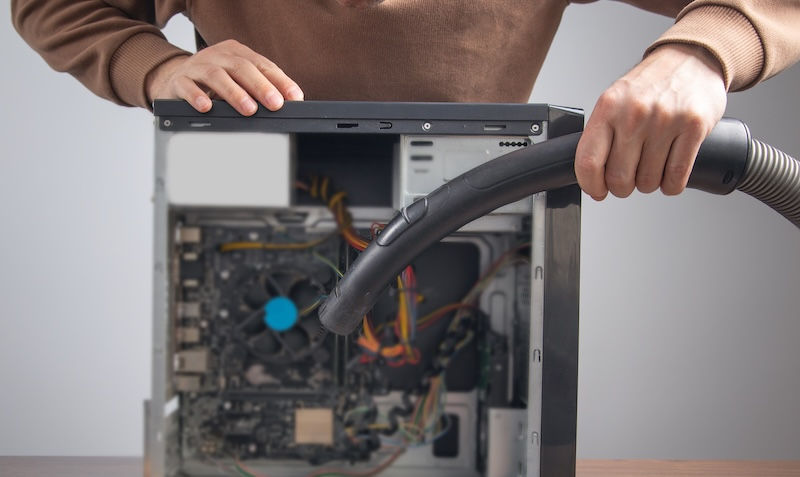
You can also make sure your computer has proper airflow—keep vents clear and avoid placing it in tight, enclosed spaces. However, internal cleaning and diagnostics require the right tools and experience. Opening a system without knowing what you’re doing can cause more damage than the original issue.

When It’s Time for a Professional Diagnostic
If the noise continues, changes in tone, or comes with performance issues, it’s time to take a closer look.
A proper in-shop diagnostic can:
Remove internal dust safely
Test fan performance
Check temperatures under load
Identify failing components early
That kind of evaluation gives you clear answers—and often prevents much bigger problems down the line.
Don’t Let a Small Noise Become a Big Repair
A loud fan doesn’t mean your computer is done—but it does mean it needs attention. Acting early keeps repairs simple, protects your hardware, and restores performance. If your system sounds louder than it should, bring it in. A quick diagnostic now can save you from a much more expensive fix later.
About 208Geek in Meridian, Idaho

Owner/Operator Jacob Van Vliet began building and repairing computer systems for friends and family out of his home in 2001. The increasing demand for computer repair led to the opening of 208Geek in the Fall of 2005, with the vision of providing outstanding service and peace of mind. Jacob, along with his team, including his wife, Brittany, remains committed to delivering friendly, professional service backed by a 100% satisfaction guarantee. The 208Geek team has earned recognition as “Idaho’s Best” for IT and computer repair for multiple consecutive years. We would love the opportunity to work with you so we can show you why!


Comments