
Computer Restart

Why Restarting Your Computer Matters More Than You Think
Most computer users have experienced this moment: the computer slows down, programs freeze, something stops working correctly, and someone asks, “Have you tried restarting it?” While that question has become a running joke in the technology world, there’s a very good reason computer repair professionals ask it so often.
Restarting your computer does far more than simply turn it off and back on again. That simple process clears temporary problems, completes important updates, improves performance, and helps protect your system from security threats.
Many people leave their computers running for days, weeks, or even months without a full restart. Modern computers make this easy because sleep mode allows users to close the lid or walk away without shutting everything down. While sleep mode offers convenience, it does not provide the same benefits as restarting your PC.
At 208Geek in Meridian, Idaho, we frequently help customers experiencing slow computers, strange errors, failed updates, and performance problems. Sometimes the underlying issue involves failing hardware, malware, or deeper software problems. However, a regular restart remains one of the simplest ways users can help keep their computers running smoothly.

What Happens With a Computer Restart?
A computer constantly manages information in the background. Every program you open, browser tab you use, and process running behind the scenes requires system resources. Over time, those resources can become overloaded.
Restarting gives your computer a fresh start. During the process, your system closes programs, clears temporary files stored in memory, and reloads essential services. Think of it as giving your computer a chance to reorganize before getting back to work.
This becomes especially important for people who use their computers every day. Business owners, remote workers, students, and gamers often push their systems hard without realizing how many processes continue running behind the scenes.
If your computer feels sluggish, restarting should always serve as one of your first troubleshooting steps.
Why Does Restarting Help a Slow Computer?

Random Access Memory (RAM) plays a major role in computer performance. Your computer uses RAM as temporary workspace while running programs. Unlike long-term storage on your hard drive or solid-state drive, RAM constantly changes as you use your system.
Sometimes programs fail to release memory properly after you close them. These “memory leaks” can gradually reduce available resources and cause your computer to slow down.
A restart clears your RAM and allows your computer to begin again with available resources restored. While restarting will not fix every performance problem, it can eliminate many temporary issues caused by overloaded memory.
When slow speeds return quickly after restarting, that may indicate a bigger problem. Aging hardware, insufficient RAM, failing drives, viruses, or unnecessary background programs can all affect performance.

Computer Updates Need Restarts to Finish Installing
Some users postpone updates because they appear at inconvenient times. Clicking “remind me later” once or twice usually causes no problems. Ignoring updates for weeks or months creates bigger concerns.
Operating system updates frequently include important security patches designed to protect your computer from newly discovered threats. Cybercriminals actively look for weaknesses in outdated systems. When developers discover vulnerabilities, they release updates to close those security gaps.
However, many updates cannot fully install while your computer continues running. Restarting allows your system to replace important files and complete the installation process. Those restart notifications may seem annoying, but they often represent important protection for your device and personal information.

Restarting alone will not remove a serious computer virus, but it can play a role in computer security. This is because some types of malware attempt to hide within active system processes. Restarting interrupts running programs and forces everything to reload. Security updates that require a restart may also patch weaknesses that malware attempts to exploit.
However, malware continues evolving. Many modern threats can survive a restart and reload when the computer turns back on. If your computer shows signs of infection, professional computer repair and virus removal provide a much better solution than repeatedly restarting and hoping the problem disappears.
Warning signs may include:

Unusual pop-ups
Programs opening without permission
Extremely slow performance
Browser changes you did not make
Strange error messages
Security warnings
When something feels wrong, having an experienced technician inspect your computer can prevent a minor issue from becoming a major problem.
Why Leaving Your Computer On Forever Creates Problems

Users often believe leaving a computer on all the time helps protect it by avoiding frequent power cycles. Years ago, this idea had more merit because older hardware handled startup processes differently.
Today’s computers handle regular restarts very well. Problems often develop when users rely exclusively on sleep mode. Closing a laptop lid every night may seem like shutting the computer down, but many processes continue where they left off when you reopen it.
After weeks without restarting, users may notice:
Slower startup times
Programs freezing
Internet browsers crashing
Updates failing
Unexpected errors
Restarting regularly gives your computer the opportunity to reset and apply needed changes.
How Often Should You Restart Your Computer?

The best schedule depends on how you use your device. Someone who only checks email occasionally has different needs than someone running demanding software every day. For many users, restarting at least once per week provides a good routine. Heavy computer users may benefit from restarting more frequently.
If your computer repeatedly needs restarts to function properly, that usually means restarting has become a temporary workaround rather than a solution. A healthy computer should run reliably between restarts.
When Restarting Does Not Fix the Problem
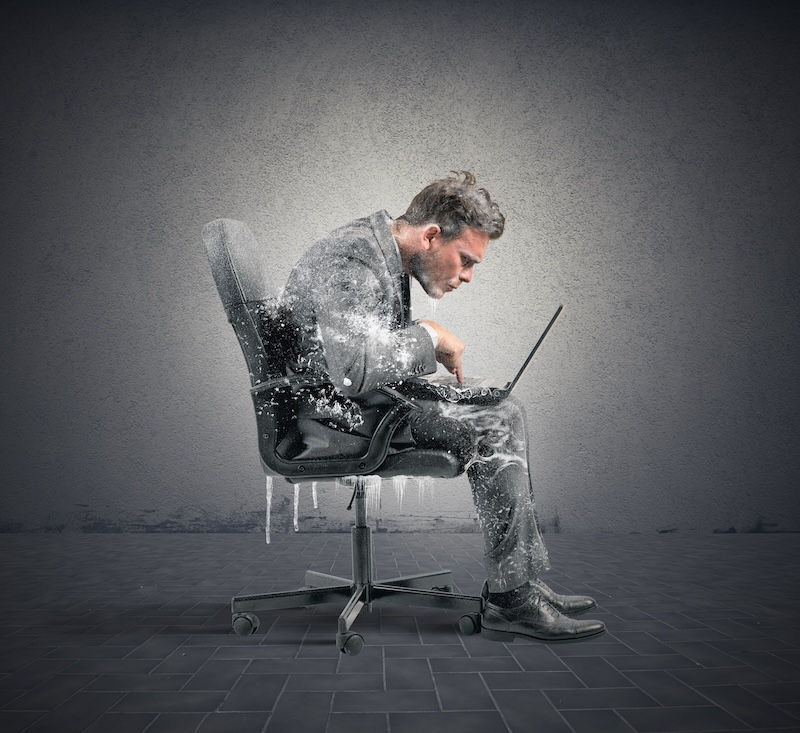
Restarting your computer serves as a great first step, but it cannot repair everything. If your computer continues running slowly, freezing, overheating, or behaving strangely, a deeper issue may exist. Professional diagnostics can identify whether the problem involves software, security threats, hardware failure, or needed upgrades.
At 208Geek, our technicians perform thorough evaluations to find the actual cause of computer problems. Guessing can lead to unnecessary repairs, wasted money, or continued frustration.
Sometimes a simple cleanup solves the issue. Other times, upgrading components or repairing hardware can extend the life of your computer.
About 208Geek in Meridian, Idaho
Owner/Operator Jacob Van Vliet began building and repairing computer systems for friends and family out of his home in 2001. The increasing demand for computer repair led to the opening of 208Geek in the Fall of 2005, with the vision of providing outstanding service and peace of mind. Jacob, along with his team, including his wife, Brittany, is committed to delivering unparalleled, friendly, and professional service with a 100% satisfaction guarantee. The 208Geek team has been named ‘Idaho’s Best’ for IT and computer repair for the past seven consecutive years. We would love the opportunity to work with you so we can show you why!


Comments